
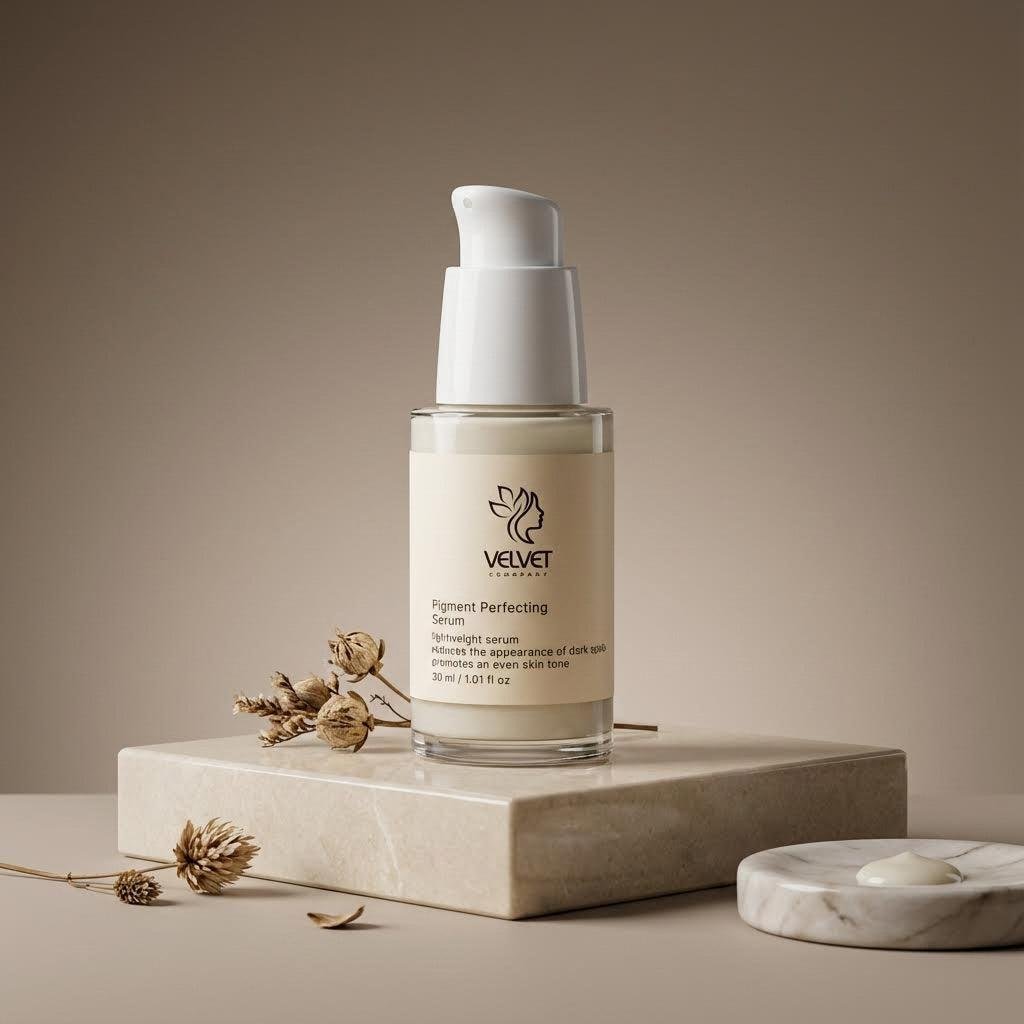
How To Spot Fake AI Product Video
Last reviewed: October 30, 2026. Tool names and prompting guides referenced in this article were checked on this date.
A fake-looking AI product video often fails before it reaches the ad platform. The product drifts, the surface looks plastic, or the motion fights the object — and it gets published because there was no quick way to screen it. This article gives you a three-question screening method you can run on any clip, and the specific fixes for each type of failure the method can reveal.
Before you try another prompt or spend more time editing, check whether the video actually shows the product you intend to sell.
The Three-Question Screen
Watch the clip once, look only at the product, and ask yourself three questions:
1. Is it still the same product?
Check its shape, proportions, colour, packaging and distinctive features. Look for changes between the beginning, middle and end of the clip.
2. Does the movement look believable for this object?
Rigid objects should not bend like fabric. Liquid should move plausibly. Products should not float without a visible reason or pass through surfaces.
3. Would a customer recognise the real item?
Check the logo, label, materials and details that distinguish your product from similar products.
This screen forces you to look at the product, not just the composition. A clip can look impressive while failing the more important question: does it look like the thing being sold?
This is a practical screen, not a benchmark. Its job is to help you notice visible product problems before you spend more time polishing a clip.
Most of what this screen catches can be influenced by the choices made before generation. Start with our product photo preparation checklist for AI video ads.
Failure Type 1: The Product Is Being Invented, Not Filmed
What the screen catches
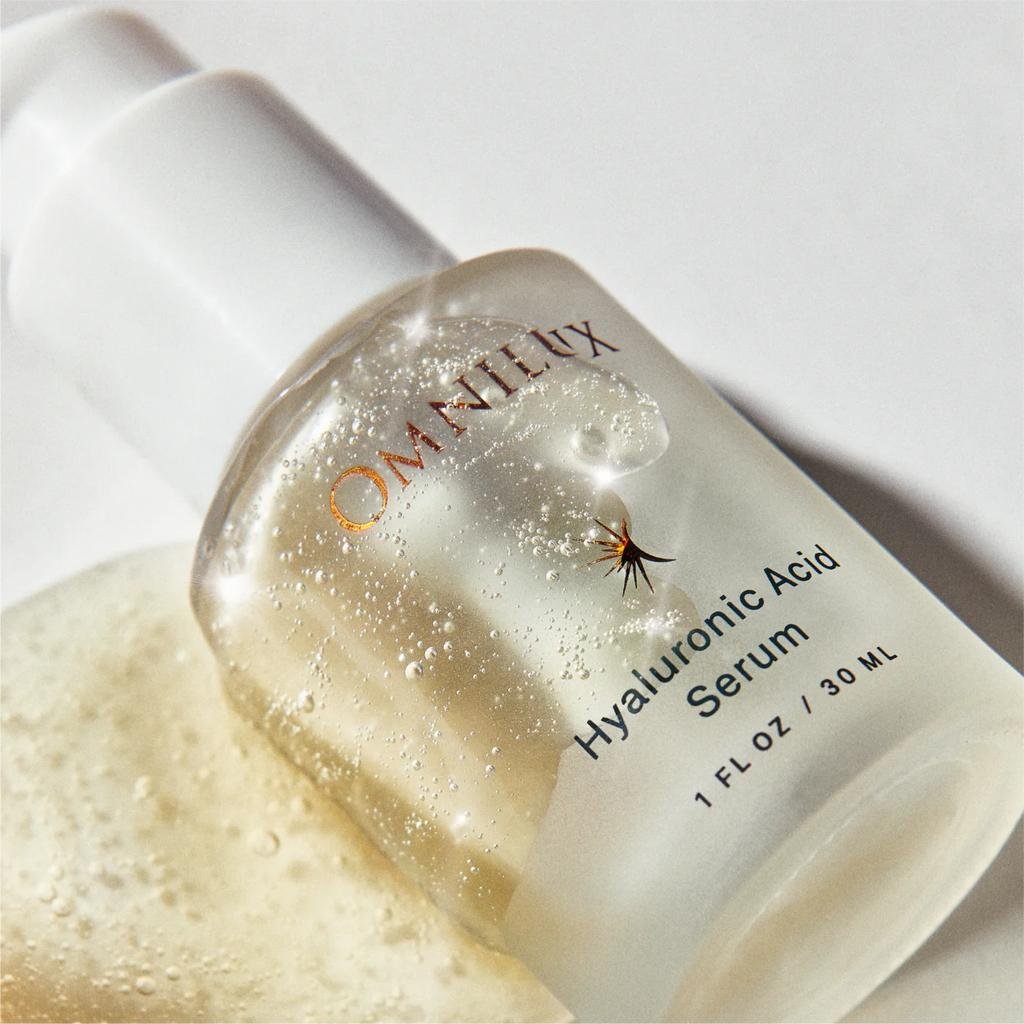
Product drift occurs when the generated video changes the product’s appearance across frames. You might notice:
- Shape shifts or changing proportions.
- Labels that smear or become unreadable.
- Caps, handles or other features that widen or shrink.
- Colours that change unexpectedly.
- Details that appear, disappear or move.
Why it can happen
An AI video model generates visual frames rather than recording a physical object. It must create plausible information as the scene changes. When a reference does not clearly show a detail, or the requested movement reveals an unseen side, the model may produce an inaccurate version.
For ecommerce brands, that difference matters. An advertisement that misrepresents packaging, shape or important product features can create incorrect expectations and undermine customer trust.
How to fix product drift
Start with the right reference. Use a clear product photograph that shows the item sharply and without obstructions. If a particular side, label or feature is essential, provide a suitable reference for it when the tool supports multiple references.
Write a geometry lock. Add one concise instruction naming the characteristics that must remain consistent, such as the product’s shape, proportions, colour and visible packaging details. This clarifies the priority, although it cannot guarantee the model will preserve everything.
Match movement to the available evidence. A single front-facing photograph is a limited reference for a complex orbit. Start with a static shot or slow push-in. Consider wider camera movement only when you have suitable reference coverage and the tool supports it.
Inspect the complete clip. Check the beginning, middle and end rather than relying on the opening frame alone.
When to stop fixing and switch
If a critical detail such as a label keeps changing after a couple of careful attempts with a clearer reference and simpler motion, consider using a verified product image or real footage for that shot. Changing the approach often saves more time than generating the same type of clip again.
Brand accuracy matters more than AI novelty.
For the broader workflow, read our AI video ads for ecommerce and Shopify guide.
Failure Type 2: The Plastic Texture Problem
What the screen catches
Some AI-generated products look unusually smooth or artificial, even when their overall shape is correct. Look for:
- Missing fabric weave, grain or material detail.
- Surfaces that appear waxy or overly polished.
- An ultra-sharp but low-texture appearance.
- Glass or metal reflections that look more like plastic.
- Materials that seem to change as the camera moves.
Why it can happen
In some outputs, surface detail appears smoothed or averaged, especially under strong lighting or close-up motion. The result can make a premium material look less distinct.
A realistic-looking product is not necessarily an accurate representation of its real materials. A leather bag that looks like smooth rubber is still misleading, even if the lighting and composition are attractive.
How to fix plastic-looking surfaces
Protect the reference detail. Use a source image that clearly shows the product’s actual finish and texture. Where possible, ask the model to preserve those visible characteristics rather than inventing a new surface.
Reduce unnecessary motion. Start with a stable product and a simple camera move. This makes it easier to assess whether the material remains consistent.
Simplify the lighting. Heavy glow, excessive particles, strong reflections and dramatic effects can make artificial surfaces more noticeable. Begin with lighting that suits the real product.
Use editing selectively. Colour and exposure adjustments may help with small issues. However, editing cannot always restore material details that are missing or inconsistent throughout a generated clip.
The business risk is straightforward: a premium product rendered with an artificial-looking finish may appear cheaper than it really is. The goal is not simply to make the image more polished; it is to make the product look faithful to the item customers will receive.
Failure Type 3: You Asked the Product to Do Something It Cannot Survive
What the screen catches
Unnatural movement can make a video feel fake even when the product looks correct in a still frame.
Watch for:
- Objects floating without a visible force.
- Caps or components sliding away unexpectedly.
- Rigid packaging bending like fabric.
- Rotations that reveal inaccurate or invented sides.
- Sudden changes in speed, direction or position.
Why it can happen
Complex movement may require the model to generate views or physical interactions that the reference does not provide. A single front-facing photograph, for example, offers limited information about the back of a product during a full rotation.
The more actions a shot combines, the more opportunities there are for something to look inconsistent.
How to fix unnatural motion
Give each shot one job. Don’t ask one short clip to reveal the product, change the setting, introduce a person, demonstrate a feature and land a call to action all at once.
Separate product movement from camera movement. Decide whether the product should move or the camera should move. If the result is unstable, simplify one of them first.
Choose the simplest movement that communicates value. A slow push-in, subtle light movement or restrained pan may be enough to make a product shot more engaging.
Match camera risk to reference coverage. Avoid fast rotations or complex angles when you have only one limited reference view.
A useful working rule is: if you cannot describe the movement in one sentence, it may be better treated as two shots.
Regenerate, Edit, or Use Real Footage?
Use this table as a starting point for deciding where to spend the next hour, not as a guarantee that any particular fix will work.
| Problem | Try first | If it still fails |
| Product drift | Use a clearer reference and simpler movement. | Use a verified product image or real footage for the affected shot. |
| Plastic texture | Reduce dramatic lighting and motion; improve the reference. | Use a real product photo or footage for close-ups and material details. |
| Unnatural motion | Simplify the action and camera movement. | Use real footage or a still image for the action that needs to look physically accurate. |
| Distorted label or logo | Improve the reference and avoid complex close-ups. | Add a verified image or overlay during editing, if appropriate. |
| Minor colour or exposure mismatch | Try a careful editing adjustment. | Replace the shot if the inconsistency cannot be corrected cleanly. |
The decision depends on the importance of the affected detail. A slightly imperfect background may be acceptable in a creative ad. An inaccurate product label or distorted feature may not be.
The Prompt Structure That Reduces Ambiguity
A clear prompt helps communicate the intended shot, but it cannot guarantee accuracy or supply visual information that the reference does not contain.
Use these five elements to structure your instructions:
- Product: Identify the product and the reference image to follow.
- Action: Specify one main action.
- Camera: Describe the camera movement, or request a static camera.
- Lighting: Describe a simple lighting setup that suits the product.
- Priority: State which product characteristics must remain faithful to the reference.
Example Prompt
“Use the supplied product image as the visual reference. Keep the product’s shape, proportions, colour, packaging and visible design details consistent with the reference. The product remains stationary on a clean studio surface. The camera makes a slow, subtle push-in. Use soft, consistent studio lighting and natural-looking shadows. Keep the product clearly visible throughout the shot.”
Adapt the prompt to your product and the controls available in your chosen tool. It is a starting point, not a universal solution.
If you use Runway, consult its official Gen-4 Video Prompting Guide for model-specific guidance. Availability and controls vary by tool and model, so check the official documentation for the version you use.
A prompt reduces ambiguity. It does not guarantee accuracy. If the reference is weak, no prompt will necessarily save the clip.
The Screen Checklist, in Full
Before publishing an AI product clip, run through this checklist:
- The product’s shape and proportions remain consistent.
- Its colour and packaging match the real item.
- Logos, labels and distinctive details are accurate.
- The material looks appropriate for the actual product.
- Movement looks believable for the object.
- Nothing floats, bends or changes position unexpectedly.
- Lighting, shadows and reflections look coherent.
- The background supports the product rather than distracting from it.
- The opening, middle and ending have all been checked.
- The exported clip looks acceptable at its intended display size.
- Any product claims and important text have been verified.
- The final ad meets the applicable platform requirements.
If a clip fails a critical product-accuracy check, don’t publish it simply because it looks cinematic. Fix the issue or choose a different production method.
If you’re still building your AI video advertising workflow, start with our practical guide to creating AI video ads for ecommerce while keeping your product accurate. It explains how to prepare product images, generate short video clips, choose advertising formats, and check product details before publishing.
FAQ
Why do AI product videos change the product’s appearance?
How can I make an AI product video look more realistic?
Can a better prompt fix every fake-looking clip?
Should I use AI video or real product footage for ecommerce ads?
How many attempts should I make before switching approaches?
Can AI video handle products with text on the packaging?
Screen First, Publish Second
The three-question screen helps you decide what to fix next: the reference, the movement, the lighting or the production method. It also gives you a consistent way to review clips before spending more time polishing them.
For the broader workflow on turning product photos into ads that still look like the product, read our AI Video Ads for Ecommerce: Shopify Guide.
For more on keeping logos, colours and packaging details consistent in AI-generated product videos, read our AI Product Video Consistency: Why Logos Shift, Colors Drift, and Text Breaks (And How to Fix It).
If you are screening AI product clips for a live store and want to share what the screen helped you identify, you can contact the EcommVideos team through the website’s contact page.