
How to Prepare Product Photos for AI Video Ads: Checklist

For Shopify store owners and marketers who want AI video ads that keep the product accurate.
This checklist is based on general image-quality practice and published guidance from AI video tools. Requirements differ by tool, so check yours. The sizes below are rules of thumb, not test results.
Your AI video is only as good as the product photos for AI video ads that you feed it.
A product photo can look perfectly fine in Shopify or Slack and still create problems during AI video generation. A compressed image, soft logo, uneven lighting, or unclear product edges can give the model more room to guess. That is where colors can drift, logos can become unclear, and materials can look different from the real product.
The better approach is simple: prepare the source image before you generate the video.
Use a clean, high-resolution product photo with accurate color, clear branding, controlled lighting, and enough space for the final composition. This gives the AI a stronger visual reference and makes it easier to catch problems before you spend time generating multiple versions.
Here is the pre-generation checklist to run through before putting a product photo into an AI video generation workflow.
| Check | Why it matters | Quick Fix |
| Export in sRGB | Colors can shift between files | Export a web-ready sRGB copy |
| Flat, soft light | Hard shadows can flicker | Use soft, even lighting |
| Tight crop with space | Small products lose detail | Fill the frame, leave room to recompose |
| Clean background | Objects can get linked to the product | Use plain white or light gray |
| Readable logo | Small text can distort | Shoot the label straight on |
| No heavy compression | Detail is lost before generation | Use the original file, not screenshots |
The 6-Point Check for Product Photos Before You Generate
1. Export in sRGB
Browsers, ecommerce platforms, and digital workflows commonly use sRGB as a practical color standard for web imagery.
If your file is still in Adobe RGB from your designer, colors can look different after export or conversion. A deep navy that looks correct in your original file may appear different on the product page or in another digital environment.
The fix is simple: export a web-ready copy in sRGB using Photoshop, Lightroom, Canva, or another image editor. Use a high-quality JPG or PNG that preserves the product’s visible detail.
Then check the exported file on both a phone and laptop. If the product color looks consistent with the product page and the real product, the source is ready for the next step.
2. Keep the Light Flat. Plain Is Better Here.
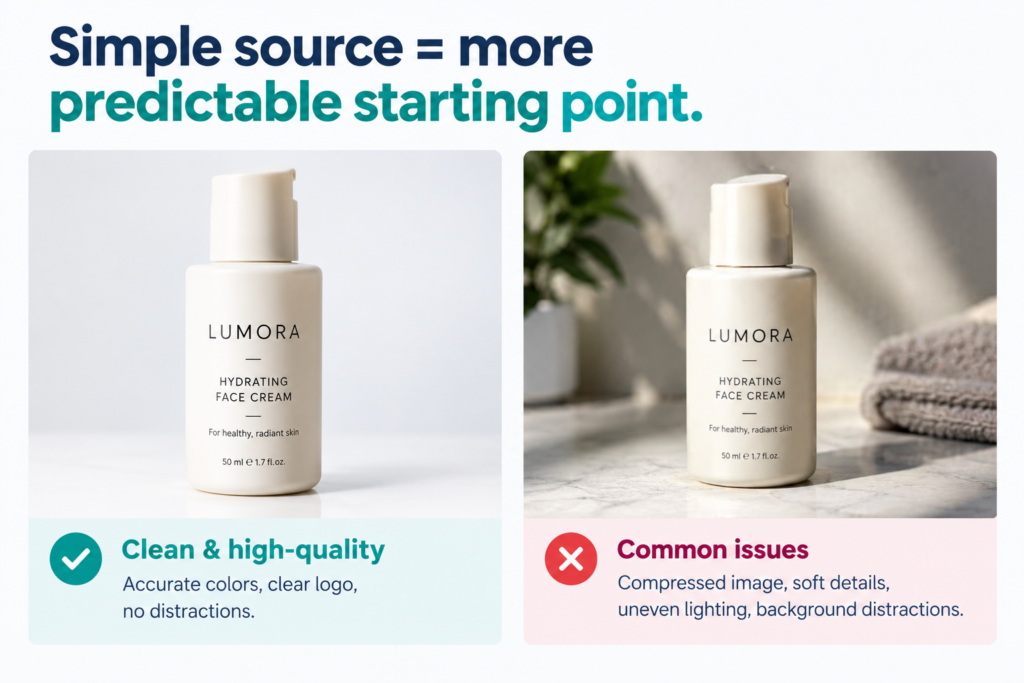
Dramatic lighting can work well for some product-page photography, but a simpler lighting setup can make a more predictable AI source image.
Hard shadows, strong highlights, or uneven lighting can become more noticeable during generation. A product may develop flickering shadows, inconsistent highlights, or changes in the way its surface appears.
For generation, keep the product clearly visible.
Use soft, even light. White or light gray backgrounds can work well for straightforward product shots. Avoid strong shadows directly underneath or across the product when they are not part of the intended design.
Simple source = more predictable starting point.
3. Crop Tight, Leave a Little Breathing Room
When a product occupies only a small part of a large canvas, the AI model has less visual information to work with. That can make it harder to maintain the product’s shape and details during motion.
Use the highest-quality original image available.
A 2000 × 2000px square image is a useful starting point when you need flexibility across multiple placements, but the ideal dimensions depend on the intended output.
Make the product fill most of the frame while leaving some empty space around it. This gives you room to recompose the image for formats such as 9:16 without cutting off important parts of the product.
The goal is not to crop the product aggressively. The goal is to give the AI a clear, detailed subject with enough surrounding space for later composition.
4. Clean That Background
Anything behind the product — a coffee mug, a hand, a reflection, or another object — can sometimes become visually associated with the product during generation.
Start with a clean, simple background.
White or light gray can work well for straightforward product shots. A transparent PNG can also be useful when your workflow supports it, but check that the product edges remain clean and natural.
If you want a lifestyle environment, consider adding that environment after generation rather than making it part of the original product reference.
This gives you more control over the product itself and the surrounding scene.
5. Make the Logo Readable From the Start
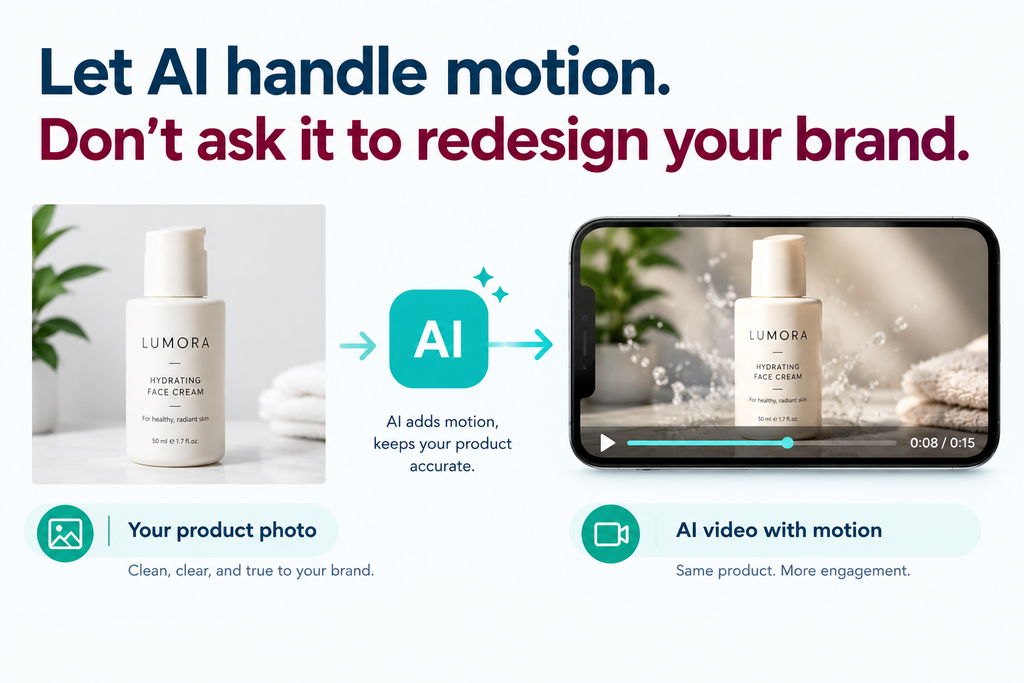
AI video models can struggle with small or complex text. If a logo is tiny, angled, blurry, or partially hidden in the source image, it can become unclear during generation.
For bottles and other curved products, a straight-on label image can provide a clearer reference than a heavily angled shot.
For boxes, consider capturing at least one face clearly and directly rather than relying entirely on a perspective view.
The logo should be sharp and large enough to remain clearly visible in the source image.
If the label or packaging text has to be perfectly accurate, don’t rely entirely on AI generation to reproduce it. Consider compositing the real label or text during post-production.
The principle is simple:
Let AI handle motion. Don’t ask it to redesign your brand.
6. Don’t Use Heavily Compressed Files
Heavily compressed JPGs, screenshots, and downloaded social-media images can contain visible compression artifacts. Fine product texture may already be lost before the image ever reaches the AI model.
Use a high-resolution original, ideally around 1500–2500px on the longest edge where practical.
For JPG, use a quality setting that preserves visible product detail without creating an unnecessarily large file. PNG is another option when appropriate.
Avoid screenshots when the original product file is available. Avoid repeatedly downloading and re-uploading the same image because every unnecessary compression step can reduce quality.
A simple check is to zoom the image to around 200%.
If you can clearly see compression blocks, smearing, or broken edges, use a better source.
A useful rule:
If the image isn’t good enough for your product page, fix the source before feeding it into a video generator.
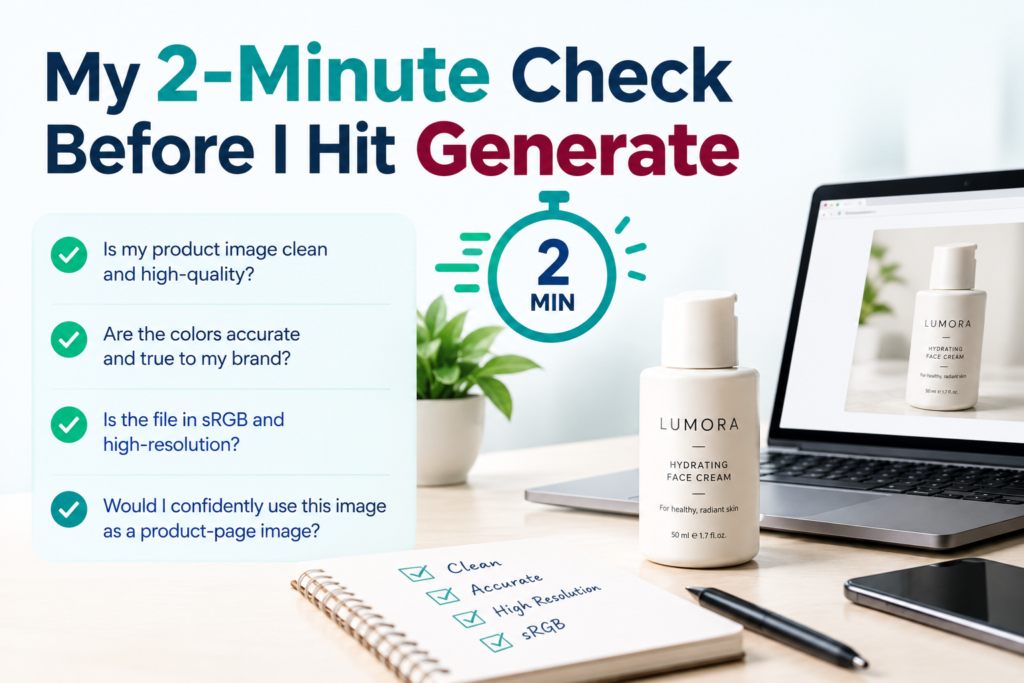
Your 2-Minute Check Before You Generate
Before generating anything, run through these five questions:
- Does the color look like the real product, not just the photograph?
- Can you read the logo without squinting?
- Is the background genuinely clean?
- Is the file in sRGB and high-resolution enough for the intended workflow?
- Would you confidently use this image as a product-page image?
If the answer to any of these is no, fix the source first.
A few minutes of preparation can reduce avoidable generation problems later.
If You Skip This, What Breaks
Skipping the preparation stage can increase the risk of problems such as:
Skip sRGB → possible color differences after export or conversion.
Skip controlled lighting → higher risk of inconsistent shadows or highlights.
Skip a clear crop → higher risk of shape or detail drift.
Skip a clean background → background elements can become associated with the product.
Skip a sharp logo → higher risk of unreadable or distorted branding.
Skip a high-quality source → compression artifacts and missing texture can carry into the generation process.
We’ll cover why these problems happen in a separate guide.
After You Generate: A Quick Check
Don’t trust the first preview automatically. Review the opening frame, a frame from the middle, and the final frame, and ask:
- Does the logo still match?
- Does the product color remain consistent?
- Is important text still readable?
- Does the material still look correct?
- Has the product shape changed?
- Are any accessories or packaging details missing?
If something important has changed, don’t publish the video just because the motion looks good. Product accuracy comes first.
For the complete workflow, see our AI Video Ads for Ecommerce guide.
Important Editorial Note
Important: A well-prepared source image improves the chances of a reliable result, but it cannot guarantee that an AI model will preserve every product detail. Always inspect the generated video before publishing. Product accuracy first, visual effects second.